Home -> Law Blog Directory -> New Law Blogs Blogs -> Supreme Court of Texas Blog
(866) 635-2689 for Personal Injury or (866) 635-9402 for Criminal Defense
Find a Local Lawyer
Divorce (866) 635-6190
Personal Injury (866) 635-2689
Criminal Defense (866) 635-9402

New Law Blogs
: Supreme Court of Texas BlogThe ?back? button for Adobe e-briefs
By Don Cruse
For all the work Adobe has done to make PDF documents hyperlinked, it has not included a basic navigational feature — the back button.
This weekend, I saw my one-year-old nephew operate his father’s iPhone. He swiped to unlock, saw an unfamiliar screen (the mail app), quickly clicked the home button to clear it out, saw the application icons pop up, quickly swiped across a couple of pages to find his children’s application, clicked the application icon to launch it, saw the splash screen load in landscape mode, and turned the device to that orientation. He did all this like a pro. 1
He can’t yet speak. He’s been walking for a few weeks. But he already uses a button to back out of something unfamiliar into something familiar.
So, when I use a modern, expensive electronic brief that is built on hyperlinks — whether through links inside one PDF document or links to other files stored on a CD-ROM — it’s a shock that Adobe Reader doesn’t display a “back” button. Every web browser displays such a button prominently; some third-party PDF readers do. Adobe’s own product does not.
It’s buried under a menu.
It turns out, however, that a similar function is buried in there. If you enjoy using aiming your mouse at small menus, the function is under “View >> Go To >> Previous View.” 2
Keyboard shortcuts to the rescue
Luckily, there’s also a keyboard shortcut that has made my use of e-briefs much more fluid. On Windows, the shortcut for “Previous View” is to hold down “alt” and press the left arrow on your keyboard. On the Mac, you use the command (⌘) button and the left arrow.
This becomes second nature pretty fast. After checking out a linked source, you can go back to your spot in the brief without lifting your hands from the keyboard.
If you want a clickable button, you can customize the default toolbar

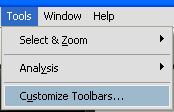
To display a graphic button like this in your toolbar, Adobe asks you to navigate to the Tools menu and select “customize toolbars…”
This brings up a dizzying array of options, but you’re looking for this “Previous View” toggle switch:
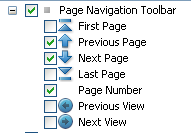
From here, you can add whatever menu buttons to your Adobe toolbar make you happy. Go crazy. But for the basic task of navigating back to a previous view, I find the keyboard shortcut to be faster and to be less distracting.
- I’m sure your children are just as adept. If you haven’t watched a toddler operate an iPhone, here’s a video his mother took of him unlocking and using the phone a few weeks ago.
- There’s a subtle nuance from Adobe — it’s not really the previous page, it’s the previous view. That means you might have to tap it a time or two to get back where you want. Someday perhaps they will make an equally hard-to-find function that takes you back to the last spot where you hit a navigational link, which would be more precisely how a back button works.
Full post as published by Supreme Court of Texas Blog on June 14, 2010 (boomark / email).
Class Action Filed Over Incontinence Briefs
Arizona Health Care Faces Federal Class Action over Incontinence Briefs
Chattanooga, TN
Seven months in back pay resolves pepper spray dispute.
Deja Vu
Exotic Dancers file class action claiming back wages
Canadian Government
former RCMP officer claims thousands of disability dollars clawed back.

#1 Online Legal Resource

On 08-25 at 15:46PM
Acute perpendicular parking #NYPD #NYFD
On 08-18 at 22:18PM
Parallel parking gone bad. Too much gas UES NYC
On 08-18 at 21:41PM
UES NYC
On 08-18 at 21:25PM
Twitter suspends journalist critical of broadcast partner's coverage on dubious grounds @guyadams #nbcfail #twitterfail
On 07-30 at 17:57PM
Model example of 1st Amendment suppression by the People of New York City's Michael Bloomberg #OWS #NYPD
On 07-12 at 21:07PM
AG Holder lackadaisical on Operation in our Sites domain name seizures & RIAA lobbied free speech suppression @dajaz1
On 06-08 at 22:44PM
Why is the Catholic Church going to court over Obama contraception policy? @NewYorker commentary
On 05-31 at 10:08AM
Monks sue Louisiana for right to sell caskets made from forrest destroyed by Katrina
On 05-31 at 07:47AM
Are the abortion ultrasound laws headed for the Supreme Court?
On 05-15 at 21:52PM





Adobe Reader 7.0 Now Available
Not Interested In Paying $300.00 for Adobe Standard Try Nitro for $50.00
Critical Update for Adobe Reader and Acrobat Versions 7-9 Coming June 9
New Training Movies Posted - Search and Touchup Text





 |
|
Contact Us | About Us | Celebrity Law Blog |
Our Partners | Disclaimer
| Law Blog Directory
| Law Jobs
| Law Tweets
| Oil Spill Video
All original material © 1999-2011 by USLaw.com. All other material, including Blog Directory feed content, are © by their respective copyright holders. |